March 3, 2014
During my lifetime, I have witnessed a few technological improvements that have really improved my day-to-day activities. The two that stick out the most are the television remote and the cordless phone. Not only did these inventions provide more convenient solutions, but more importantly, created a fundamental shift of how we approach and utilize these technologies. Salesforce.com is about to introduce a function that may not have as big of an impact as those, but it will empower the non-programmers with more control over their instance. Salesforce.com is piloting a new workflow action called a Flow Trigger. The Flow Trigger will allow functionality only available today through Apex coding and place it into a GUI interface designer. To understand why this new functionality might be a game changer within the Salesforce community, this article will:
- Look at the current functionality of Visual Workflow
- Explain how trigger-ready flows will empower this functionality
- Describe some of the new flow elements added for this pilot that adds Nitro to Visual Workflow
Visual WorkFlow
Anyone who has been using visual workflow within their organization should be able to see the possibilities already. However, some Salesforce users may not know the first thing about visual workflow or dismissed it as functionality that didn’t meet their requirements. Visual Workflow, or simply, “flow,” allows administrators to build applications, known as flows that guide users through screens for collecting and updating data. One example of a flow would be an application that implements a call script for a customer support center (see Figure 1). The customer support operator would read the script text and ask the caller questions. They would then enter their answers on the screen and get different results depending on the answer entered.
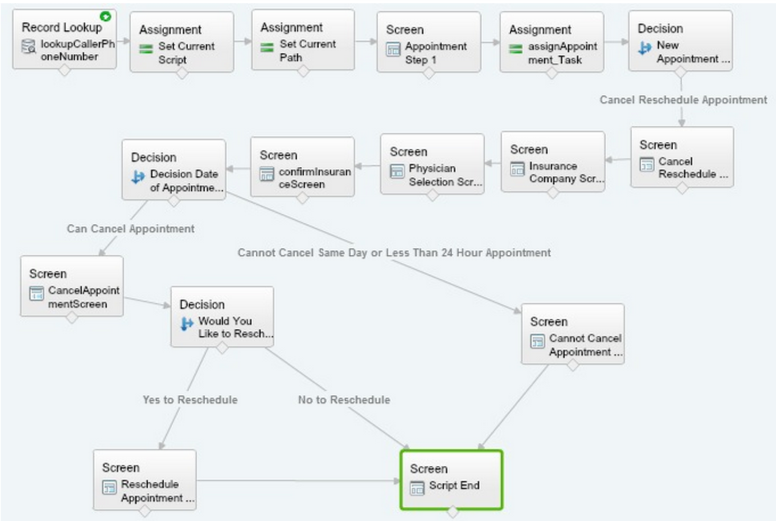
Figure 1 - Sample Flow Script with Interactive Screens
Within flow, there are different types of elements. Some elements are user interfacing and others are logical elements. The current elements include the following: Step, Screen, Decision, Assignment, Record Create, Record Update, Record Lookup, Record Delete, Subflows, Apex Plug-In, and Connector. The combination of these elements alone can add functionality that is only available today by writing APEX classes and triggers. The “Flow Trigger” pilot would open allow much of the same functionality through declarative methods. You would be able to create logic through a graphical user interface (see Figure 2, Flow Designer) and then launch that flow from a workflow rule.
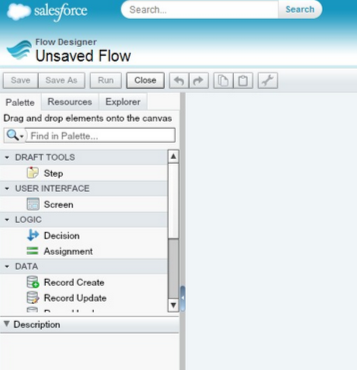
Figure 2 - Flow Designer
In the Pilot, if a flow is to be used as an action after a workflow rule, then it cannot contain user interfacing elements. This is so that it can run in bulk and without interaction. Here is an example of a non-interactive flow (see Figure 3). Imagine having the ability to change the credit rating on an account record and then updating all the child accounts of that account with the same credit rating as their parent—all without one line of code, a test class, or code coverage.
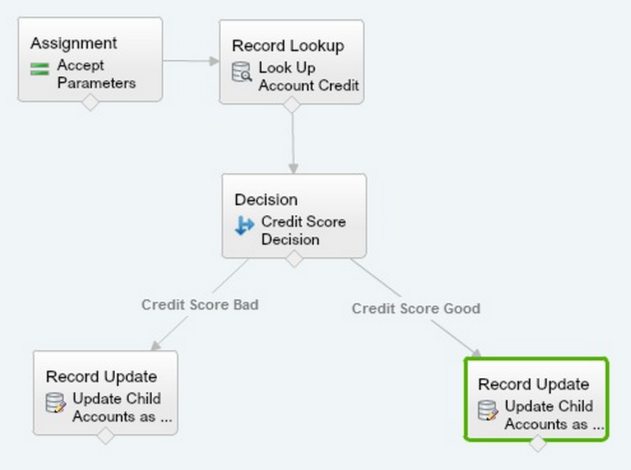
Figure 3 - Sample Non-Interactive Flow
With flow elements you can assign variables, branch to different outcomes based on a set of conditions, look up records, and create/update/delete records. All these elements are combined within the Flow Designer through a graphical user interface. The flow designer includes the ability to drag and drop flow elements and connect them with a click and drag of a connector. When you add an element, you can then update its available properties to make it perform the actions you desire. A plethora of possibilities are now available to the non-programmer. Administrators can use logic to design their flows to accomplish a task.
Calling a Flow Trigger from a Workflow
Once you create a trigger-ready flow, you activate it to make it available to a workflow rule. Now you are ready to create a workflow rule with a new Flow Trigger workflow action. You must select the same object for both the workflow rule and the Flow Trigger. Next you associate the Flow Trigger to the workflow rule. And finally, you activate the workflow rule.
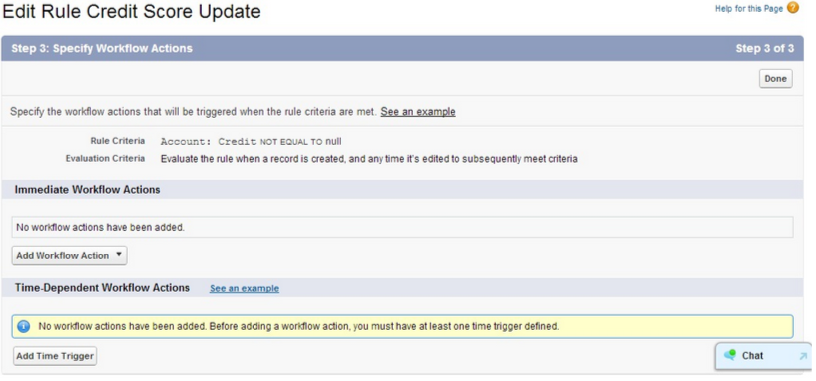
Figure 4 - Create Workflow Screen (Actual layout for new Flow Trigger not yet available)
New Elements for Flow Trigger
Salesforce.com has put together some additional functionality within Flow that makes Flow Trigger even more enticing. They include SObject Variables, Collections, and Loops. By combining these functionalities, you can query an object and obtain a collection of records. Then you can loop through those records, examining each one and making changes based on a decision. Finally, when your loop is finished you can update your collection of records. Let’s run through a real life example that previously would have required a trigger to accomplish, but now can be done through a Flow Trigger.
SObject Variables
An SObject variable represents a record for a specified object within a flow. The variable can store field values of an object record which can be referenced. Upon creation they are given the default value of null. You can use the ‘Is Null’ operation within a decision element to make sure an SObject variable has a value before using it. There is even a new operation called “Was Set” that allows you to check if a SObject variable field was ever set. Furthermore, there are specific elements that can be used with the SObject variable: Fast Create, Fast Update, Fast Lookup and Fast Delete.
The “Fast Lookup” element can use filters to look up and retrieve Salesforce records and fields to populate an SObject variable. The “Fast Create” element can insert new Salesforce records using all the fields of an SObject variable. The “Fast Update” element uses the ID of an SObject and updates an existing record using all the fields of an SOBject, whereas the “Fast Delete” element uses the ID of an SObject variable to identify which record to delete.
Collections—Pilot
A Collection variable allows the ability to group together SObject values for processing as a unit. Consider it an array of ordered SObject variables, in which an individual item in a collection is similar to an SObject variable and contains fields with values. When you query a Salesforce Object and return multiple records, you store them in a collection of type Account. Each record returned is stored in its own SObject variable within the collection and can be referenced by record separately. If the query that you use for retrieving a contact, for example, contains the Phone Number and Email Address, then the collection will contain only those fields, plus the ID, per record retrieved. The values of other fields are not copied to the collection with the exception of the ID field, which is always queried by default.
Loops
The Loop element is used to cycle through every item in a collection variable. This allows you to examine every item in a collection using a Decision element to take the correct action for each record. A loop uses a loop variable to contain the values for each item in the collection as it cylces through. The loop variable must be of the same type of SObject as the collection variable. A loop provides the ability to go to the next item in a collection and where to go when there are no more items to process. Lastly, loops have the ability to iterate through the collection in first-to-last order or last-to-first order.
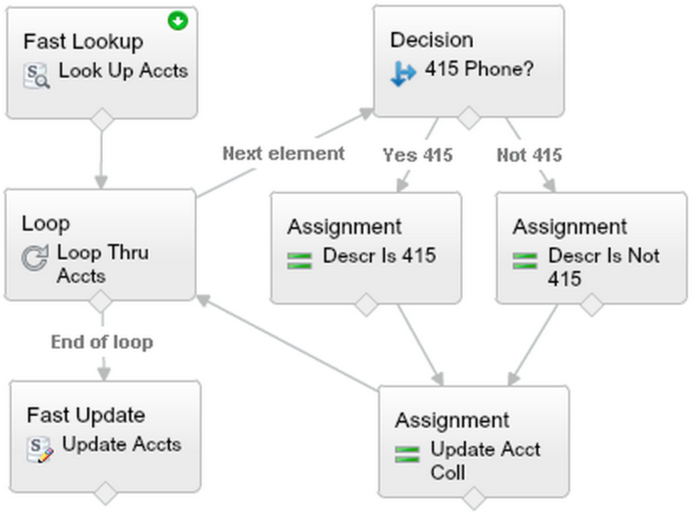
Figure 5 - New Elements with Launch Flows from Workflow Rules—Pilot
Debug Logs for Flow Tiggers
Salesforce has added debug logs for events that are related to the execution of Flow Trigger workflow actions. These debug logs will help trace what occurs when workflow rules launch flows.
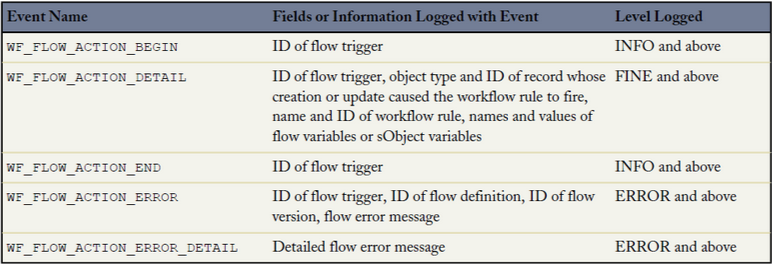
Figure 6 - Debug Log Events for Workflow Actions
You can run end-to-end testing by using these new logs in combination with the debug logs for running flows. This ability allows for better troubleshooting of issues that may occur.
Limitations and Specifics
There are some general facts regarding the use of Flow Triggers, which include:
- In the hierarchy of execution, Flow Triggers are executed after all workflow field updates, including any Apex triggers and standard validations that are executed as a result of those workflow field updates, but before the system executes escalation rules.
- When the system executes a workflow rule with multiple Flow Triggers, those flows aren’t run in any particular order.
- Much like an Apex Trigger, if a Flow Trigger fails at runtime, the record created or edited won’t be able to be saved.
- If you build a Flow Trigger, it can only be used from workflow rules and nowhere else.
As with all functionality, the Flow Triggers has limitations. Some of those limitations are:
- Flow Triggers are not available on all objects
- Flow Triggers can’t use multi-select picklist fields to set flow variables or SObject variables
- Flow Triggers are limited to setting up to 25 variables and SObject variables in the flow
- Currency ISO code or local information is ignored when using a currency field
- Flow Triggers can’t pass values into SObject collection variables in flows (you have to use add/edit/delete from a copy such as another SObject variable)
- Flow Triggers aren’t available as time-dependent workflow actions
- Flow Triggers are not available in change sets
- Flow Triggers are not packable
Summary
Even if you don’t understand all the technical aspects of what I have explained here, what you should walk away with is that this pilot will add more options without the need of an Apex programmer. I applaud salesforce.com in their efforts to move more functionality into friendlier drag and drop interfaces, much like they did two years ago when they introduced the Site.com Studio for building web pages. Even with its limitations, having the functionality of Flow Triggers is very enticing and makes more options available. For those that get to be a part of this pilot, please test its mettle thoroughly. I for one hope that it becomes generally available later this year. I look forward to seeing it in action with all its flowing possibilities.
See how others are innovating on the Salesforce Platform in the State of Salesforce Annual Review. Download the free report and benchmark yourself against the latest industry trends.